Gemini supports custom MCP apps in Spark, not Gemini Chat. Add Microfn once in Connected Apps, then use it in Spark conversations.
Before you start
Custom apps require access to Gemini Spark. Google currently limits the feature to eligible personal Google Accounts in the United States, with Keep Activity enabled. It is available in English.
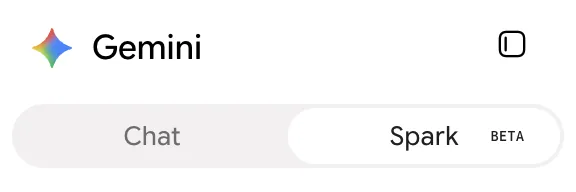
1. Open Connected Apps in Spark
Go to Gemini Connected Apps. If the page opens in Chat, switch to Spark.
2. Add a custom app
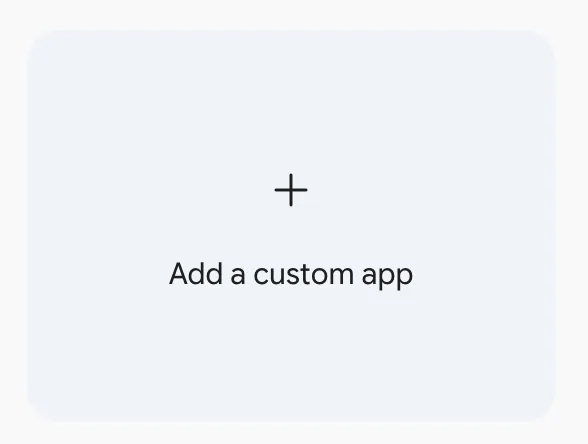
In Custom apps for Spark, click Add a custom app.
3. Enter the Microfn URL
Paste this MCP server URL, then click Next:
https://mcp.microfn.dev/mcp
Follow the prompts to link your Google Account, sign in to Microfn, and approve the connection. Name the app microfn when Gemini asks.
4. Use Microfn in a Spark chat
In a Spark conversation, type @ and select microfn. You can ask it to list your functions or run a named one. Gemini asks for confirmation before tool calls that can make changes.
Troubleshooting
There is no option to add a custom app. You need Gemini Spark access. Check that you are using a personal Google Account with Keep Activity enabled, and that the feature is available for your account.
The URL is rejected. Use the exact HTTPS URL above. Microfn supports the standard remote MCP connection flow.
Microfn does not appear in the chat. Start a Spark conversation, type @, and select the connected app from the list.
Read more
See the Microfn MCP documentation for the endpoint and authentication flow.