Grok can connect to Microfn as a custom MCP connector. Once connected, it can discover and run the functions in your Microfn account from a conversation.
1. Open connectors
Go to Grok connectors, then click New Connector and choose Custom.
2. Add Microfn
Enter these details:
- Name: microfn
- MCP server URL:
https://mcp.microfn.dev/mcp
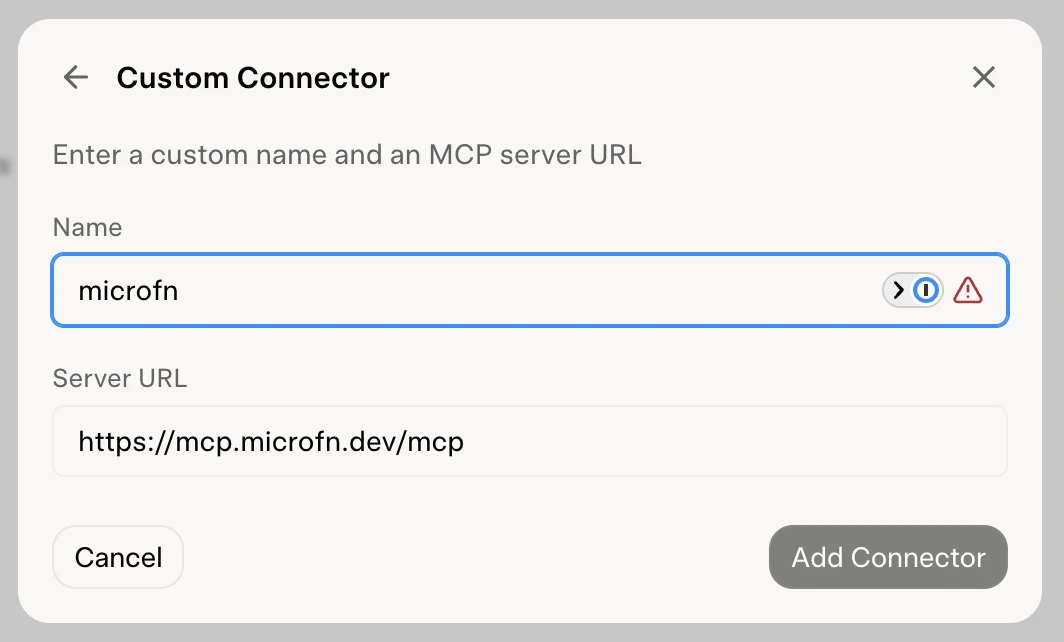
Save the connector. Grok checks the public MCP endpoint and discovers the functions it can call.
3. Sign in to Microfn
Grok opens the Microfn authorization flow. Sign in to your Microfn account if needed, then approve the connection.
4. Use your functions
Start a conversation and ask Grok to use Microfn. For example, ask it to list your functions or run a named function.
Troubleshooting
The URL is rejected. Use the exact HTTPS URL above. Microfn is a remote MCP server, so it is already reachable from Grok.
Grok cannot run a function. Confirm the function is enabled as an MCP tool in Microfn, then reconnect the connector so Grok refreshes its tool list.
Read more
See the Microfn MCP documentation for the endpoint and authentication flow.